Start Here

Goldmine is a database that contains a ton of information designed to help with cybersecurity-related activities.
The majority of the data is public data breaches, but there is much, much more if you know how to find it.
The goal of this site is to help people do that quickly and easily.
Video Intro
Corey recorded a video that covers much of the basics. Goldmine Intro (Microsoft Stream)
Who Maintains Goldmine?
Corey Ham (@cham423) and Ralph May (@ralphte) built goldmine, and maintain it, along with occasional help or data donations from friends.
If/when things break, please open a Gitlab Issue with some information for us and we'll get it fixed as fast as possible.
Simple Usage
The most common use case for goldmine is grabbing a list of usernames and passwords affiliated with a certain email domain. This is a must for any penetration test. Here's how to do that:
Command Line
- Download the CLI client from GitHub
- Ensure that the binary is configured to be executable.
- Write a configuration file to disk as
config.yml:
Update the fields with {} sequences to the proper values.
===
Download the CLI client from GitHub
Ensure that the binary is configured to be executable.
Write a configuration file to disk as
config.yml:
index: "leak_*"
url: "{LASTPASS-URL-SEE-NOTES-FIELD}"
username: "{LASTPASS-USERNAME}"
password: "{LASTPASS-PASSWORD}"
domain: "{DOMAIN-TO-SEARCH}"
email: ""
limit: 1000000
debug: false
verbose: true
- Execute the binary, which saves the output to disk:
hoardd -c ~/config.yaml
Web Interface
It is also possible to export results from the Kibana web interface in CSV format. This is helpful for building advanced queries, which is much easier in Kibana.
Navigate to the kibana interface at https://kibana.goldmine.sh
Log in with credentials from lastpass
Build your query in the web interface, for example:
KQL
phone_number:* and email:"*@google.com"Lucene
_exists_:"phone_number" && email:"*@google.com"This query would return all records that have an email address within the "google.com" domain, and where the
phone_numberfield is present.::: caution Note that there are two options for query language in Kibana: KQL and Lucene. Reference material: KQL Documentation Lucene Documentation
The right side of the query box shows what language you are using. Click on the language name to change to the other. :::
By default, all fields would be returned, but we can filter what fields we want to see to make the results easier to parse.
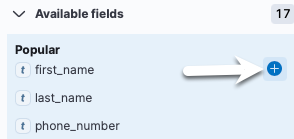
Now we will only see the fields we selected.
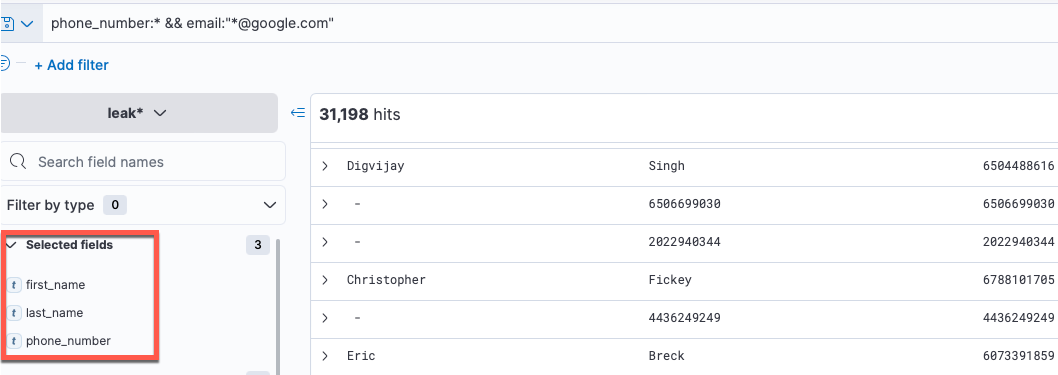
Now that we are seeing the results we wanted, let's export these in CSV format for later usage.
Click Share at the top of the page, then click "CSV Reports" and "Generate CSV".
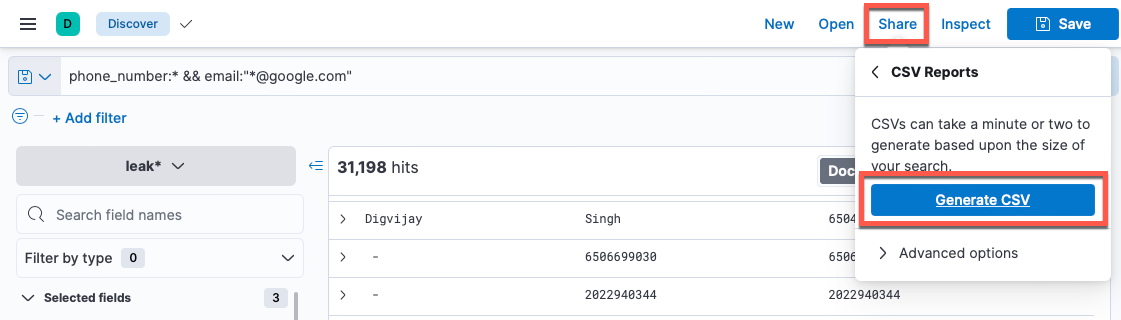
There will be a popup at the bottom right of the screen once the CSV is finished generating, with a link to the generated report.
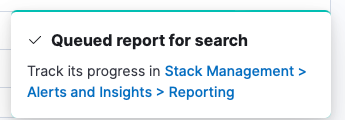
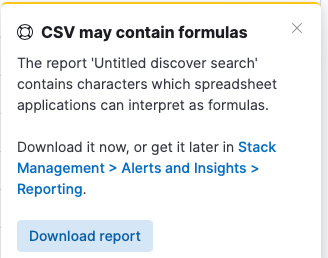
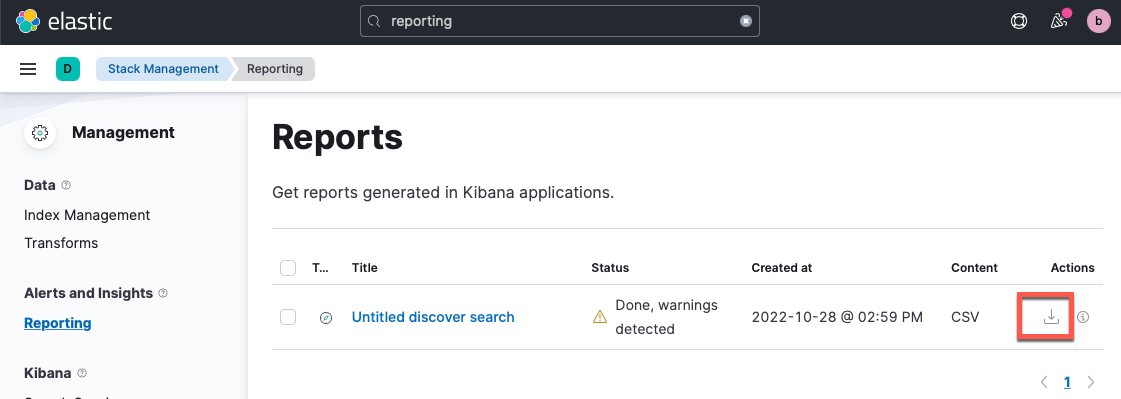
If you miss the popup, you can manually navigate to Stack Management -> Reporting to see a list of generated reports. Click on the download logo to download your report.
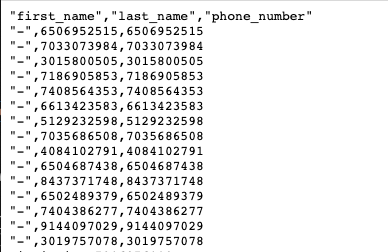
Clicking the download logo should open a new tab with your CSV results. You can "Save As" from here, or just copy/paste the results into a file, depending on size.
After you're finished, feel free to delete the report, or rename it and leave it for others to find later.
Due to the shared "bhis" account in kibana, reports can be viewed by other employees. Delete your report if it contains sensitive data. Search query strings can be sensitive data.